
If you are a Samsung phone user and are bored with the old lock screen clocks, and want to try some different custom clock styles, then this guide is for you.
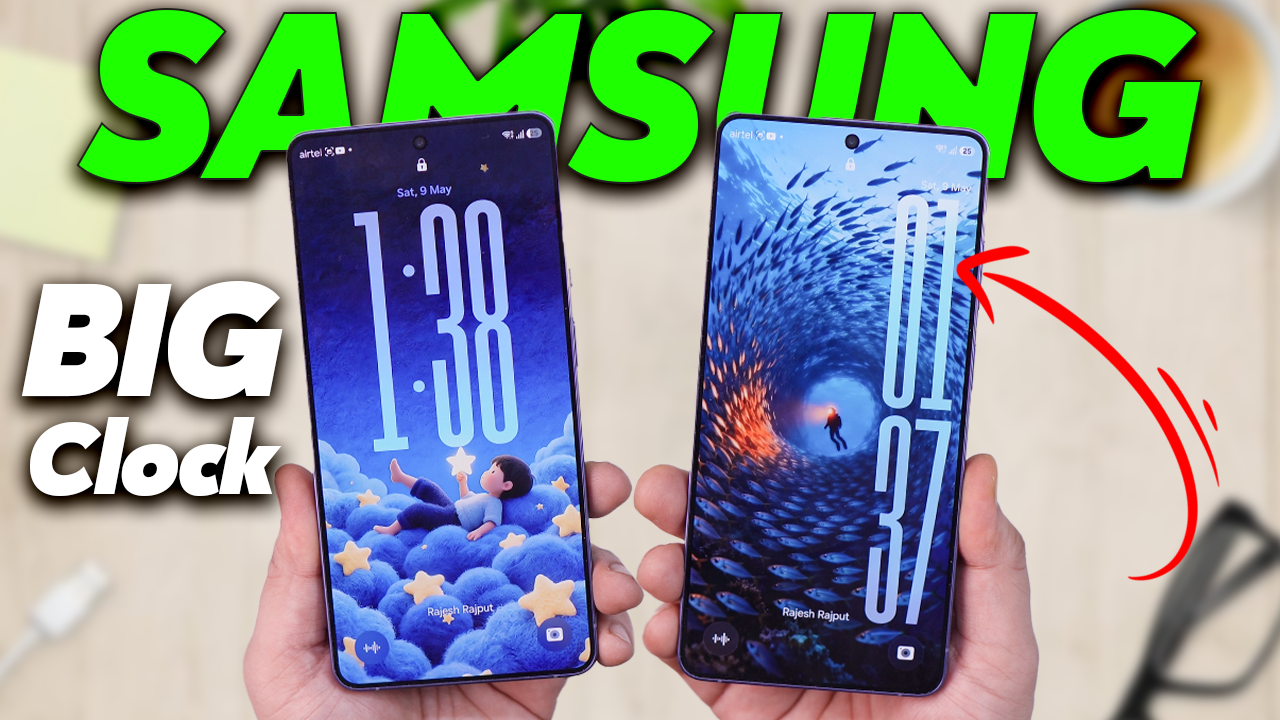
Today, we found a simple trick by which you can easily change the lock screen clocks on your Samsung phone, whether it’s running One UI 7, One UI 8, One UI 8.5, or even One UI 9. We are currently using One UI 9, and we already replaced the default Samsung clock with big iOS-style clocks.
The process is very simple, and there is no need to unlock the bootloader or root your Samsung phone. You only need to install a few custom font APK files, and then you can change the lock screen clock directly from the lock screen customization settings.
So without wasting any time, let’s get started.
How to Get the Big Clock Feature on Your Lock Screen
As mentioned above, this trick works on almost any Samsung phone running One UI 7, 8, 8.5, or the upcoming One UI 9.
1. First, download the ZIP file containing the custom fonts apk file.
2. Once the file is downoaded, Extract the ZIP file and save all the APK files on your Samsung phone.
3. Then, install all the APK files one by one on your Samsung phone
(If you want the iOS-style clock, install the Oppo Clock APK. This will give your Samsung phone a big iOS-style lock screen clock.)
Once all the APKs are installed, go to Lock Screen Customization and tap on Font and Colour tab.
Now tap on the three-dot menu at the end and select the font you want to apply to your lock screen. Once applied, the new giant iOS-style clock will be enabled on your Samsung phone.
This way, you can easily replace the old boring Samsung lock screen clocks with fresh new custom clock styles.
Video Guide – Samsung’s Secret “Big Clock” Feature: How to Turn it On Now!
.
.
Wrap Up
So yeah, with this simple trick, you can completely transform the look of your Samsung lock screen without rooting or unlocking your phone. Let me know which clock style you liked the most, and don’t forget to share your setup too
Credit – Github
